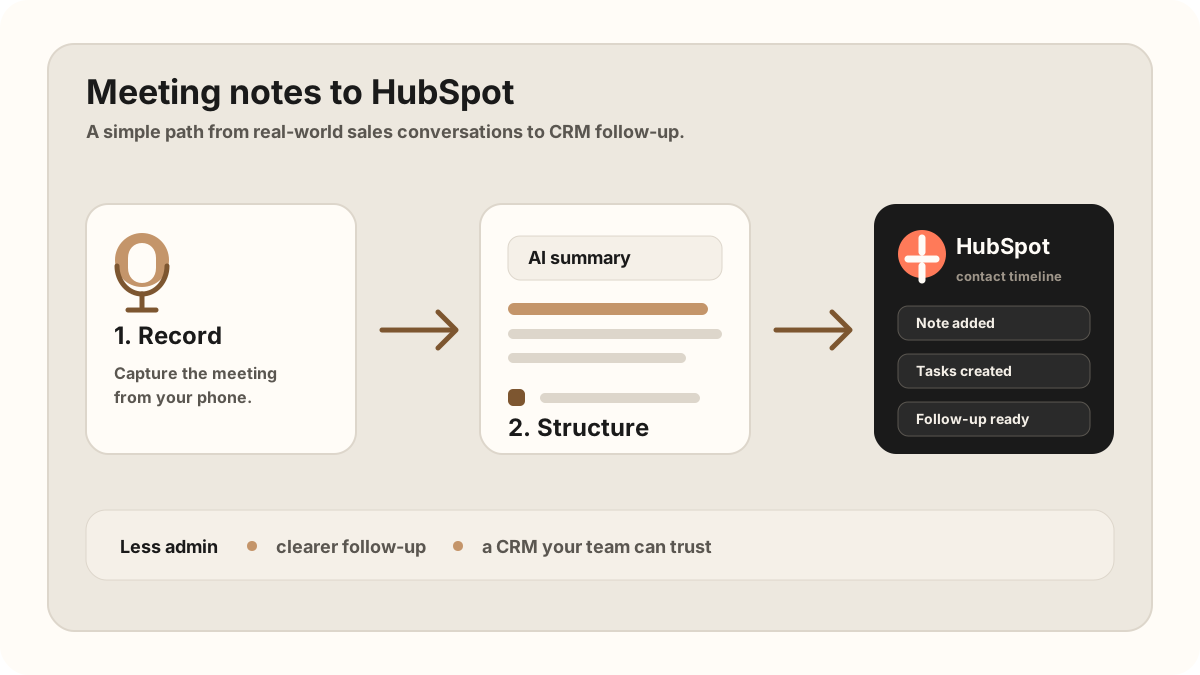
A sales rep gets back from a customer visit, opens HubSpot, and stares at the blank note field. The meeting was useful. The prospect had budget. There was a technical objection. Someone promised a pricing follow-up. But the useful details are split between memory, a notebook, and maybe a half-written email draft.
This is where HubSpot gets messy. Not because the CRM is bad. HubSpot can store contacts, notes, tasks, deals, and timeline activity. The problem is that in-person sales meetings happen away from the desk, while CRM admin waits until later. Later is when details flatten.
For field reps, HubSpot sync belongs inside the broader field sales app workflow. A route planner gets the rep to the account, a phone-first note workflow captures what happened, and a mobile CRM update makes the follow-up visible before the next customer stop.
For teams comparing a sales rep app, outside sales app, or the HubSpot workflow needs the same structure as the field-sales stack: visit tracking, CRM field maps, after-sync hygienes, follow-up tasks, and CRM sync that reps can finish from the phone.
The 2026 version is not just "send a transcript to HubSpot." The useful version turns a customer conversation into a scannable timeline note, associated tasks, due dates, record context, and a short follow-up plan. That is the difference between activity logging and actual pipeline memory.
The goal is not to sync every word. The goal is to sync the details that help you follow up, keep the pipeline honest, and avoid re-asking questions the buyer already answered.
Quick Answer: What HubSpot Meeting Notes Sync Workflow Do Sales Teams Need?
The best HubSpot meeting notes sync workflow captures the sales conversation on the phone, turns it into a reviewed timeline note and follow-up task list, associates the right details with contacts, companies, deals, tickets, or custom objects, and syncs only approved notes, owners, due dates, outcomes, and field updates into HubSpot.
- If HubSpot notes are too thin: prioritize buyer context, objections, promised follow-up, meeting outcome, source meeting, and related contact, company, or deal.
- If tasks are vague: prioritize action item, owner, due date, customer reason, associated record, priority, and the note that created the task.
- If automation creates timeline noise: prioritize the HubSpot field map, sync status, blocked updates, sync errors, and destination record IDs.
Why HubSpot Notes Fail After Real Sales Meetings
Most sales note workflows assume the rep is already in front of a laptop. That is fine for Zoom calls. It breaks down when the meeting happens at a customer office, a conference booth, a coffee shop, or in the middle of a packed sales day.
The failure mode is predictable. The rep remembers the headline, but misses the specifics. The contact record gets a note like "Good meeting. Follow up next week." A month later, nobody knows what the objection was, what was promised, or why the deal moved forward.
For HubSpot to stay useful, the note needs to preserve the sales context. That means the summary, the buyer's actual concern, the next step, and the owner of each action item.
HubSpot records are built around activity context. Notes can be logged on CRM records to add information to the record timeline, tasks can be created from the tasks index or individual records, and associated activities can appear across related contacts, companies, deals, tickets, or custom objects. A good meeting-note sync uses that model to make the customer timeline clearer.
What Should Actually Sync Into HubSpot?
The best HubSpot sync is opinionated. It does not dump a raw transcript into the CRM and call the job done. It creates a clean record that a sales rep, account executive, or sales manager can scan in under a minute.
| Meeting detail | Why it matters | Where it belongs |
|---|---|---|
| Meeting summary | Gives the next person context without replaying the whole conversation. | HubSpot note on the contact timeline. |
| Key objections | Shows what might block the deal and what follow-up should address. | Inside the note body, near the summary. |
| Action items | Turns "we should follow up" into visible work. | HubSpot tasks associated with the contact. |
| Owners and dates | Prevents vague reminders from becoming stale pipeline noise. | Task title, due date, and owner fields where available. |
| Attendee/contact match | Makes sure the note lands on the right person, not a random company record. | Existing HubSpot contact, or a new contact if appropriate. |
| Associated company or deal | Keeps the note visible where the account or opportunity work actually happens. | The relevant company, deal, ticket, or custom object association. |
| Originating meeting | Shows where the note and tasks came from. | The original meeting, recap, recording, or sales call report reference. |
| Sync status | Keeps automation from silently changing judgment-heavy deal fields. | After-sync hygiene, sync log, needs review, synced, task created, or no action needed. |
The Automatic Workflow
A useful automatic sync has five steps.
1. Capture the meeting where it happens
For in-person sales, the capture tool should be phone-first. You should be able to record the conversation with consent or capture a quick recap, then move on with the rest of the sales day instead of rebuilding the meeting later. If there is no video meeting for a bot to join, use a no-bot AI note taker workflow. For iPhone-specific capture, use the iPhone sales meeting recording workflow.
2. Turn the recording into structured notes
The transcript is raw material. The output you want is a short summary, the important buying signals, objections, and action items. This is the layer that makes the sync worth doing.
3. Match the meeting to the right HubSpot contact
The CRM update only helps if it lands in the right place. For calendar-based meetings, attendees can be used to match the meeting to contact records. For ad-hoc meetings, the workflow should still make it easy to connect the note to the right person.
4. Create notes and tasks automatically
The meeting summary should become a HubSpot note. Promised follow-ups should become tasks with the right owner, due date, associated record, and context. That is the difference between "I recorded the meeting" and "my CRM is actually up to date." For the task structure, use the same pattern from sales meeting action items.
5. Leave judgment-heavy fields to the rep
Automatic sync should reduce admin, not create silent pipeline changes. For most teams, it is safer to sync notes and tasks automatically, then let the sales person confirm changes to stage, amount, close date, or forecast category.
Where This Lands in HubSpot
HubSpot's CRM model supports this workflow. Contacts store the individual people you sell to. The record page gives sales teams an activity timeline and overview context, while notes and tasks can be associated with the records where follow-up work needs to stay visible.
That means the clean workflow is simple: find or confirm the right contact, company, or deal; create a note with the meeting summary; then create tasks from the action items. You do not need to turn HubSpot into a transcript archive. You need to make the timeline useful.
If your team uses HubSpot seriously, the highest-leverage sync is not "save transcript." It is "make the next follow-up impossible to miss."
HubSpot Meeting Notes Field Map
A useful HubSpot sync starts with a CRM field map. Sales meeting notes are not one long text block; they contain the contact match, company or deal association, summary, buyer signal, objection, action item, owner, due date, and review state. Each piece should land where the rep or manager will naturally look for it.
This HubSpot CRM field map keeps the timeline clean. The note body carries the customer story. Tasks carry the follow-up work. Associations keep the update visible across the contact, company, and deal. Sync status tells the rep what was created, what still needs approval, and which deal fields were left untouched on purpose.
| Meeting note element | HubSpot destination | After-sync hygiene rule |
|---|---|---|
| Contact, company, or deal match | Associated contact, company, deal, ticket, or custom object. | Auto-associate only when the attendee, email, company, or deal context is confident. |
| Meeting summary | Timeline note on the matched CRM record. | Safe to sync automatically after the rep approves the summary. |
| Buyer pain, objection, or decision signal | Note body, deal context, or a team-specific risk property. | Keep in the note automatically; ask for review before changing deal properties. |
| Promised follow-up | Task title, description, owner, due date, associated record, and status. | Create the task automatically when the action, owner, and date are clear. |
| Next meeting or reminder | Task, activity, or next-step property depending on the team's setup. | Confirm timing if the customer used vague language such as later this month or after procurement. |
| Sync status and sync status | Internal status, note label, task status, or sync log. | Mark as needs review, synced, task created, or no action needed. |
HubSpot Sync Workflow by Meeting Type
HubSpot updates should match the shape of the meeting. A trade show conversation, customer office visit, field demo, and renewal check-in should not produce the same generic note. Use the capture method and record association that fit the selling motion.
| Meeting type | Capture workflow | HubSpot output |
|---|---|---|
| Customer office visit | Record with consent or capture a structured phone recap before the next stop. | Contact or deal timeline note, customer pain, objections, next meeting, and dated follow-up tasks. |
| Field demo or site walk | Capture operational constraints, implementation questions, technical blockers, and promised materials while details are fresh. | Deal note, company context, implementation risks, product questions, task owner, and due date. |
| Conference or trade show conversation | Record a quick recap after the booth conversation with company, buyer role, interest level, and promised follow-up. | Contact note, event origin, priority, follow-up task, and event details. |
| Expansion or renewal check-in | Summarize account health, adoption gaps, new stakeholders, risks, and expansion interest. | Company or deal timeline note, renewal risk, expansion signal, and internal follow-up tasks. |
| Post-meeting manager review | Use the synced note and task list as the review reference, not the rep's memory. | Clean customer timeline, visible open tasks, and a clear audit trail for what changed after the meeting. |
HubSpot Meeting Notes Sync Checklist
- Connect HubSpot before the meeting. Do not wait until after a sales day to configure the integration.
- Use calendar attendees when possible. They make contact matching much cleaner than relying on memory later.
- Keep summaries short. A CRM note should be scannable by another person on your team.
- Convert promises into tasks. "Send pricing" should become a visible task, not a sentence buried in a note.
- Associate the right records. Attach the note and tasks to the contact, company, deal, ticket, or custom object where the next action belongs.
- Review edge cases. If a contact is missing, decide whether your process should create one automatically or ask for confirmation.
- Audit weekly. Look at recent meetings and confirm the HubSpot notes are clear enough for someone else to understand the deal.
Field Sales HubSpot Sync Workflow
A desk-based rep might update HubSpot right after a video call. A field rep may go straight from one visit to another. The sync workflow has to work from the road.
Use this after each customer visit
This connects naturally to sales route planning, visit tracking, field sales follow-up, customer meeting notes, and CRM task creation. The point is to make HubSpot reflect the customer conversation while the rep is still close to the details.
Automation Guardrails for HubSpot Notes
The best sync workflow removes repetitive CRM admin while leaving judgment with the seller. A sales meeting note can safely create a summary and tasks, but it should not quietly rewrite deal fields that need human context.
Use this approval pattern
This is also where HubSpot sync helps reduce CRM admin. Reps should not have to write the meeting in a notebook, summarize it in a note app, paste it into HubSpot, recreate tasks by hand, and then draft the follow-up email from scratch. For the broader operating rhythm, see how to reduce CRM admin for sales reps and the in-person sales call follow-up template.
HubSpot Hygiene After Auto-Sync
Modern AI note tools, including LogicNotes, sync meeting notes to the CRM automatically. There is no approval screen between the meeting and the record, and that is the point: the rep stays out of data entry. The trust layer moves into the CRM itself, as a quick after-sync habit instead of a pre-sync gate.
After a synced note lands, a two-minute pass covers what matters: confirm the note attached to the right account or contact, make sure the next step exists as a real task with a date, and fix anything that looks off by editing the note or task directly in Salesforce, HubSpot, Zoho CRM, Dynamics 365, or Google Sheets. Edits made in the CRM are visible to managers and teammates right away, so the record stays trustworthy without slowing down the field day.
How LogicNotes Handles This
LogicNotes is built for the meeting that does not happen on Zoom. You record the in-person conversation on your iPhone, get a structured AI summary and action items, then let the notes and tasks sync automatically into your CRM.
For HubSpot users, that means your sales meeting can become a contact timeline note and follow-up tasks without the usual copy-paste routine. It is especially useful for sales people who live in customer conversations but still need HubSpot to reflect what actually happened. If the team is still choosing tools, compare this workflow with the AI meeting notes apps guide for in-person sales teams.
HubSpot Meeting Notes Sync FAQ
How do you sync sales meeting notes to HubSpot automatically?
A practical workflow captures the meeting on mobile, turns the recording or recap into a structured AI summary and action items, matches the meeting to the right HubSpot contact, company, or deal, then creates the note and follow-up tasks.
What should sync from sales meeting notes to HubSpot?
Sync the meeting summary, customer pain, objections, promised follow-up, action items, owners, due dates, associated record, CRM field map, and sync status. Avoid turning HubSpot into a transcript archive unless your team has a clear reason to store the full transcript.
Should the full transcript sync into HubSpot?
Usually no. The full transcript can be useful as backup, but the HubSpot record should stay scannable with a clean summary, customer context, objections, action items, owners, due dates, and originating meeting details.
Where should meeting notes land in HubSpot?
Meeting notes should land on the HubSpot record where the next sales action happens, such as the contact, company, or deal. Follow-up commitments should become tasks associated with the relevant record.
What HubSpot fields should sales meeting notes update?
The safest fields to update from sales meeting notes are the note body, contact, company, or deal association, task title, task owner, due date, status, priority, and a sync status. Deal stage, amount, close date, forecast, and lifecycle changes are safest made by a person directly in HubSpot after the note lands.
What HubSpot task fields should sales meeting follow-ups include?
Useful HubSpot tasks should include a clear action, owner, due date, associated record, customer context, status, and the originating meeting that created the follow-up.
Should HubSpot tasks be created automatically from meeting notes?
Routine follow-up tasks can be created automatically when the action, owner, due date, and associated record are clear. Reps should still double-check ambiguous commitments, customer-facing wording, deal changes, and low-confidence matches in HubSpot after the sync.
How should field sales reps update HubSpot from the road?
Field sales reps should capture the meeting or a quick recap from their phone, let the note and tasks sync to HubSpot automatically, and glance over the record before the next customer stop.
Can a no-bot AI note taker create HubSpot tasks?
Yes. A no-bot AI note taker can turn an in-person meeting recording or recap into structured action items, then those action items can become HubSpot tasks with owners, due dates, associated records, and follow-up context.
What should stay manual instead of automatic in HubSpot?
HubSpot notes and routine follow-up tasks can often sync automatically, but judgment-heavy fields such as deal stage, amount, forecast category, close date, and deal health should usually be reviewed by the sales rep or manager before changing.
How should field reps review HubSpot sync before saving?
Field reps should check the matched HubSpot contact, company, or deal, the note summary, action items, and dates in HubSpot right after the sync lands. A quick after-sync glance keeps automation useful without letting incorrect CRM changes linger.
Stop rebuilding HubSpot from memory.
If your problem is getting in-person sales meeting notes into HubSpot, LogicNotes was built for that job: record, summarize, and sync the follow-up while the details are still fresh.
Download LogicNotes for iOS